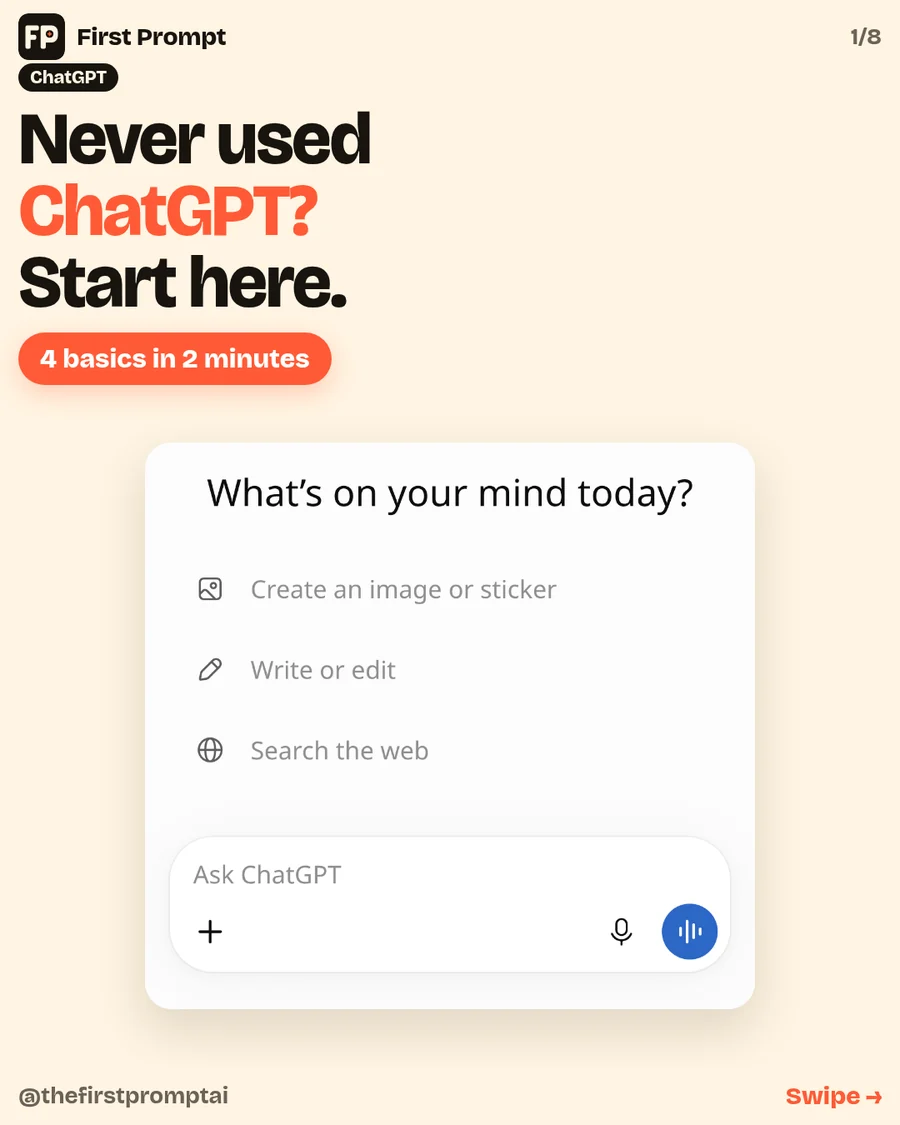
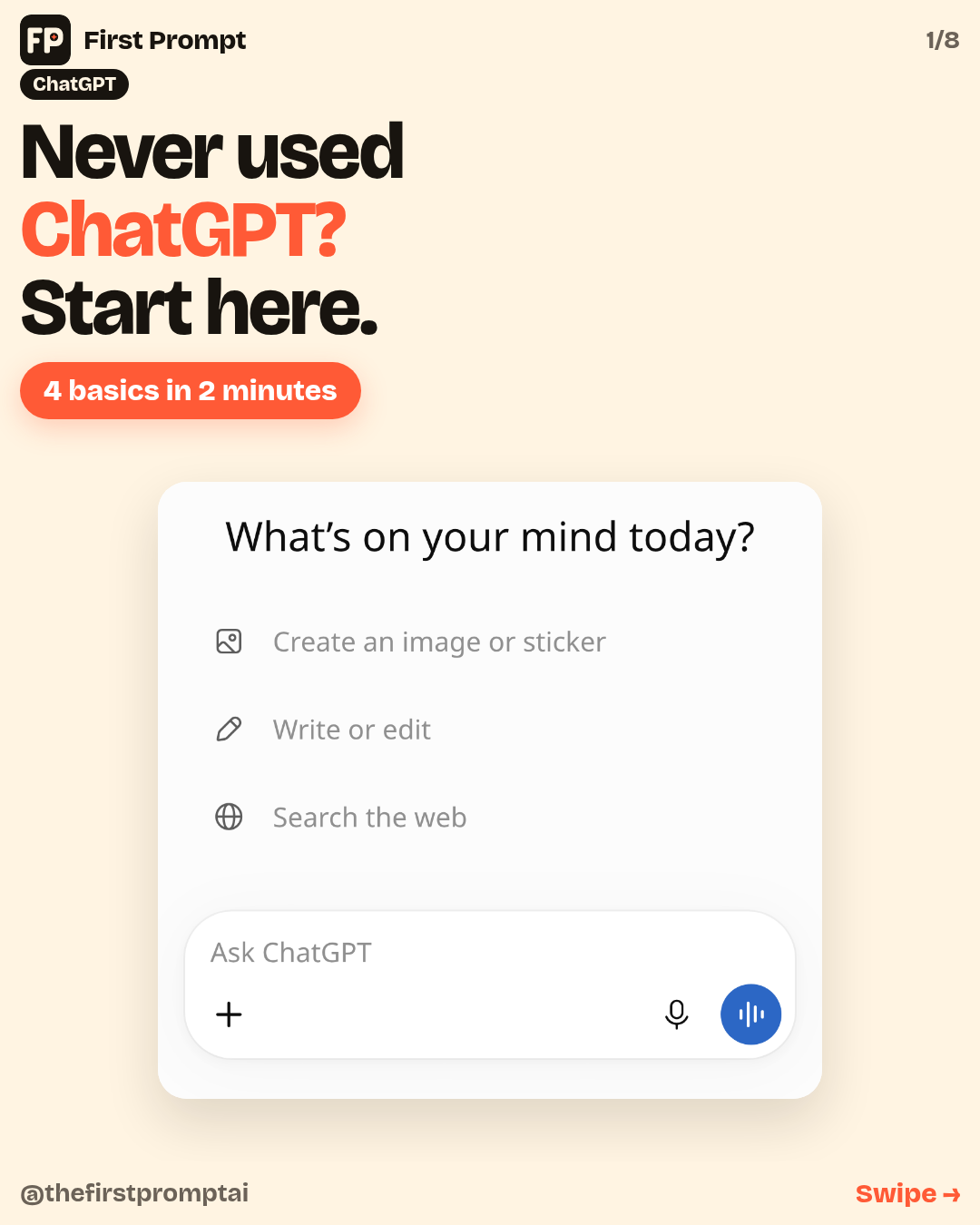
You can do this on the free plan, on your phone. The pictures below are the whole screen, so you can see exactly where to tap.
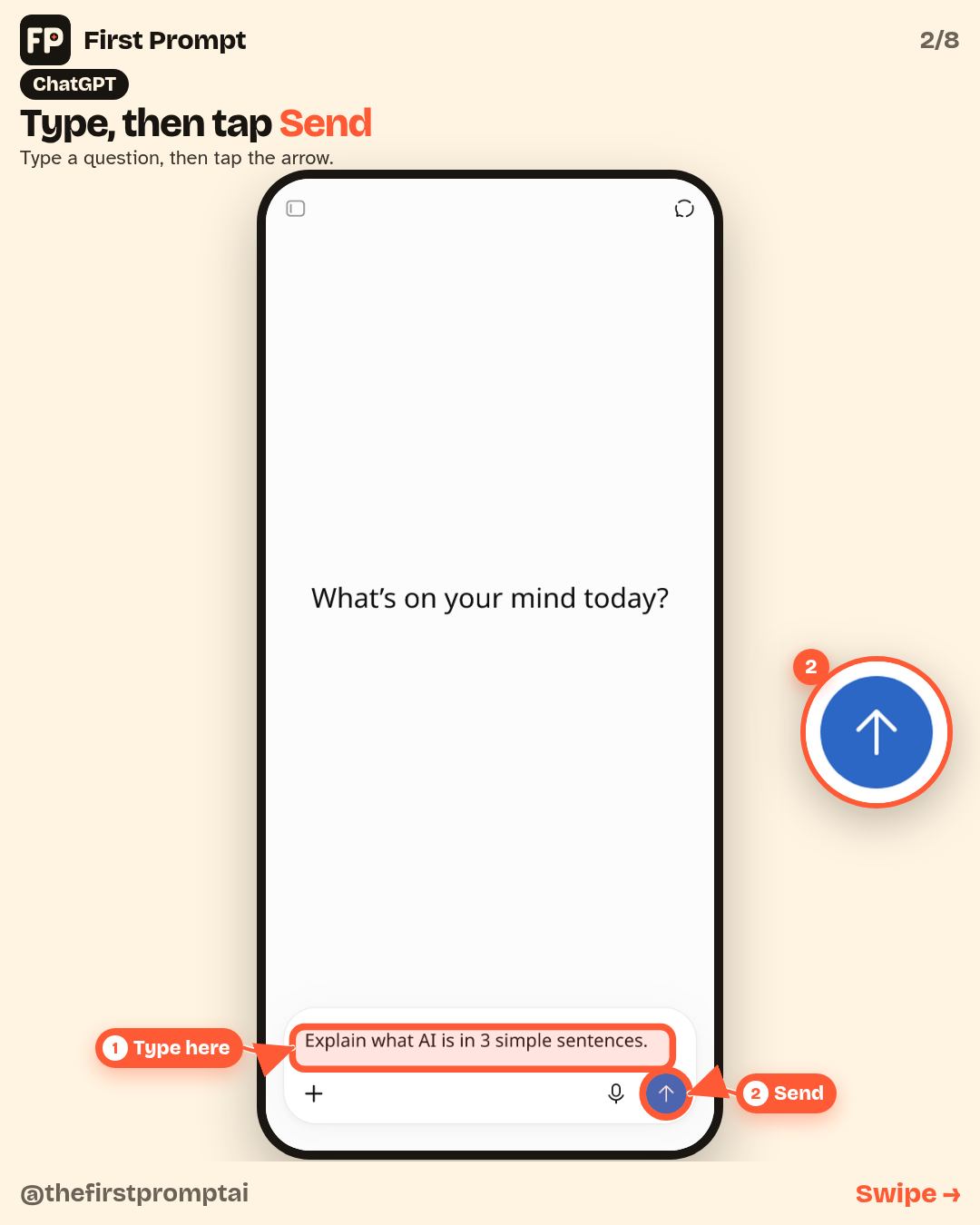
1. Type, then tap Send
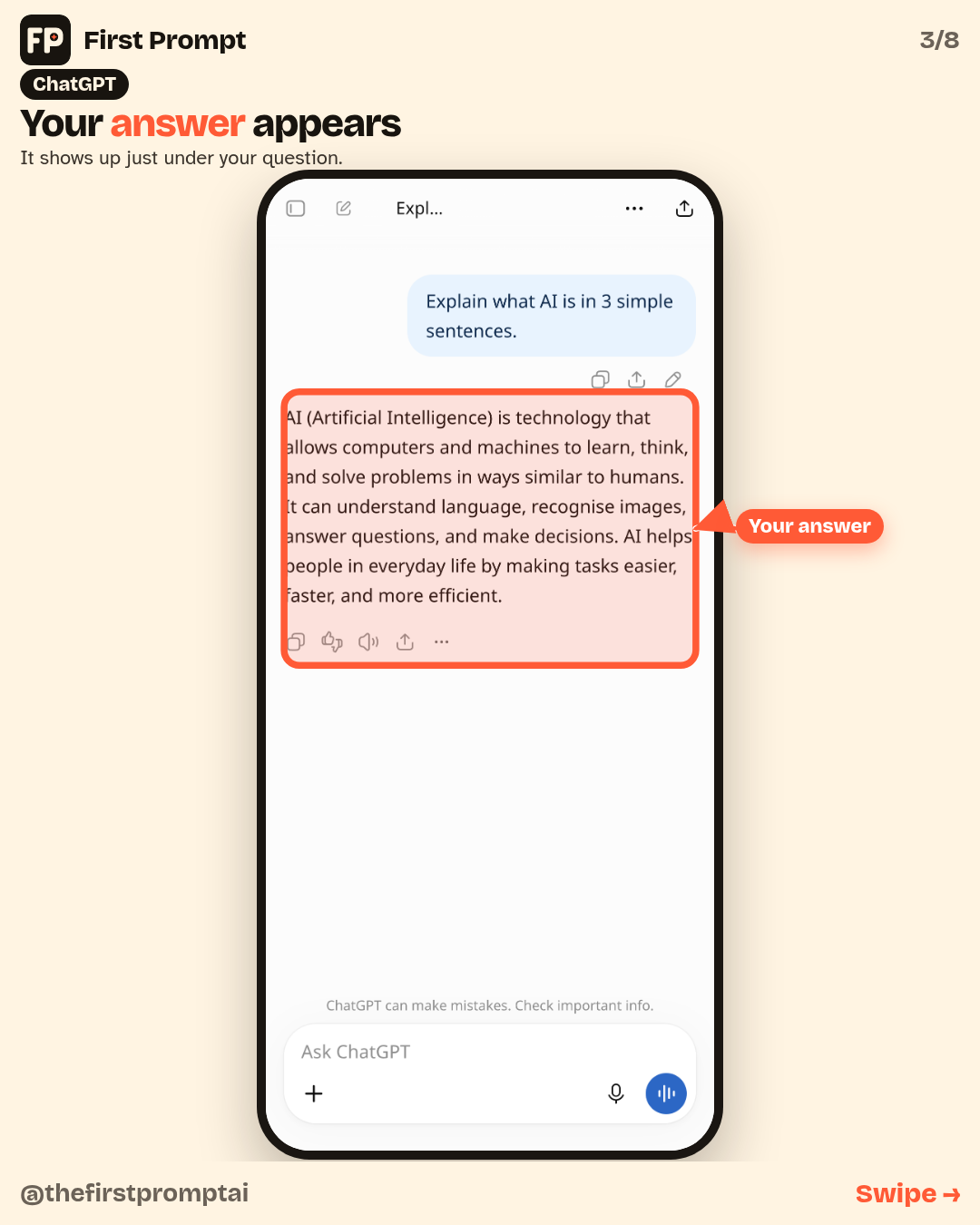
Type a question in the box at the bottom. After you type, a Send arrow appears. Tap it. The answer shows up just under your question.
The microphone stays next to the box. Send only replaces the blue voice button.
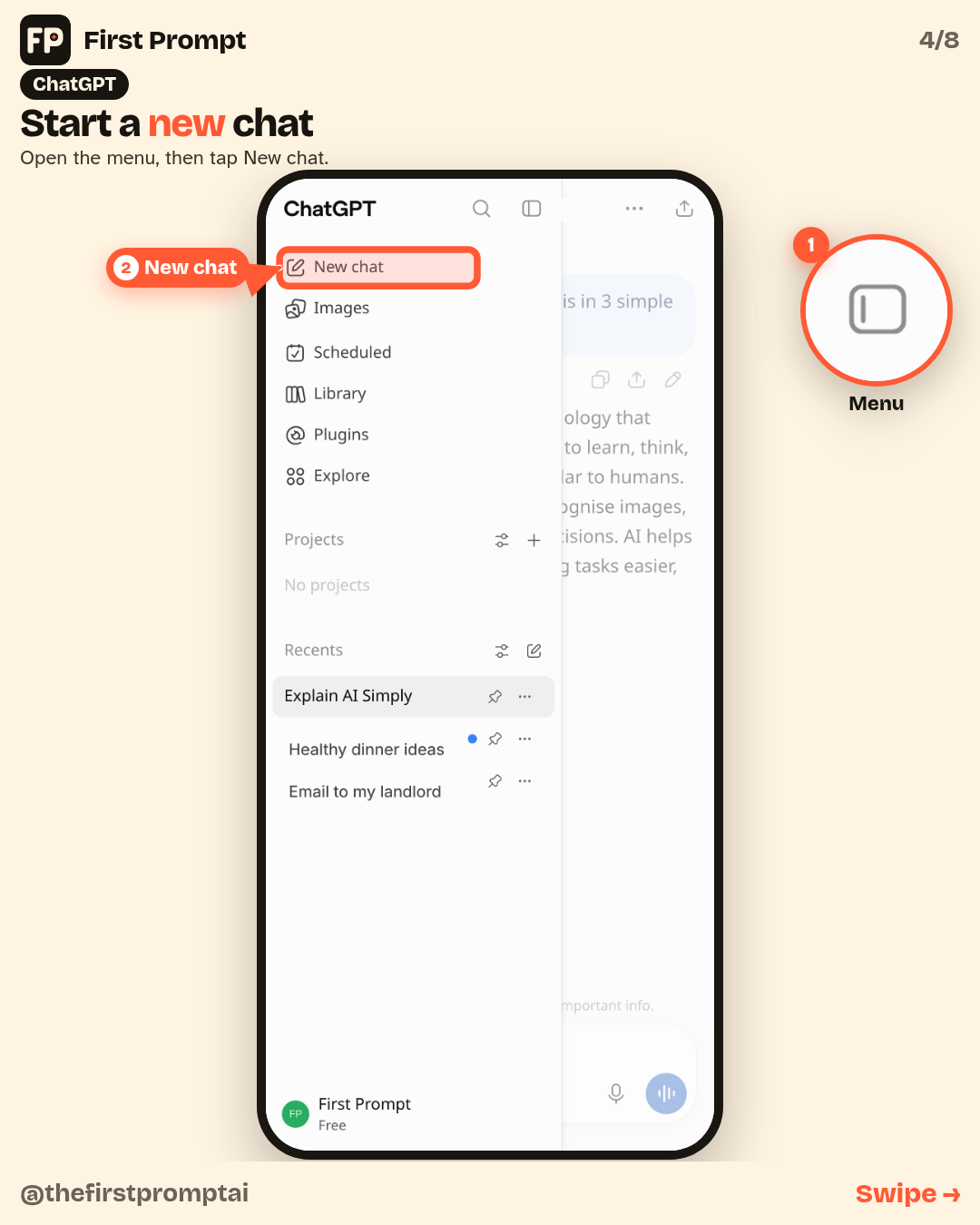
2. Start a new chat
Open the menu (the button at the top left), then tap New chat. That gives you a fresh conversation.
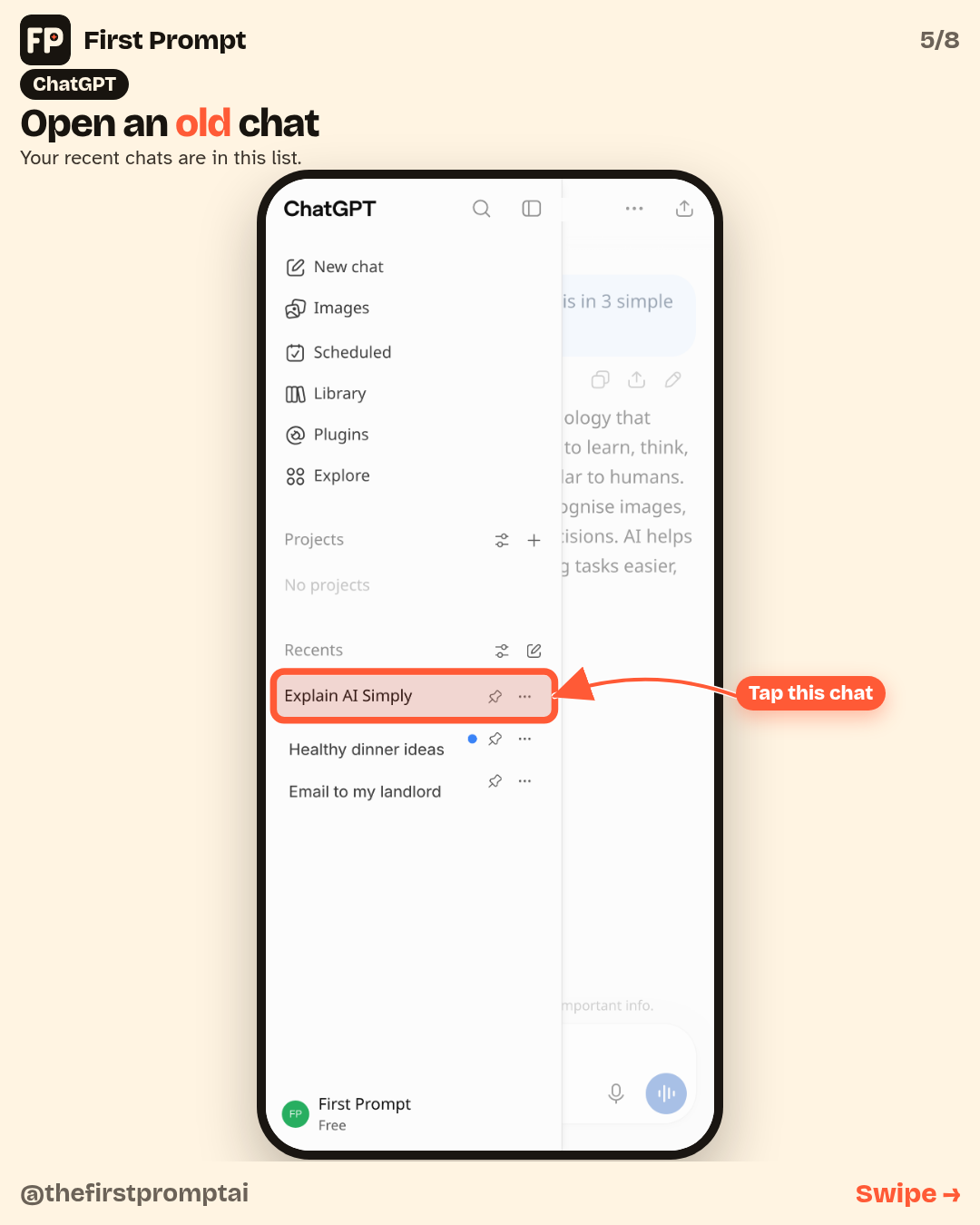
3. Open an old chat
Your recent chats are in the same menu, in a list. Tap one to reopen it.
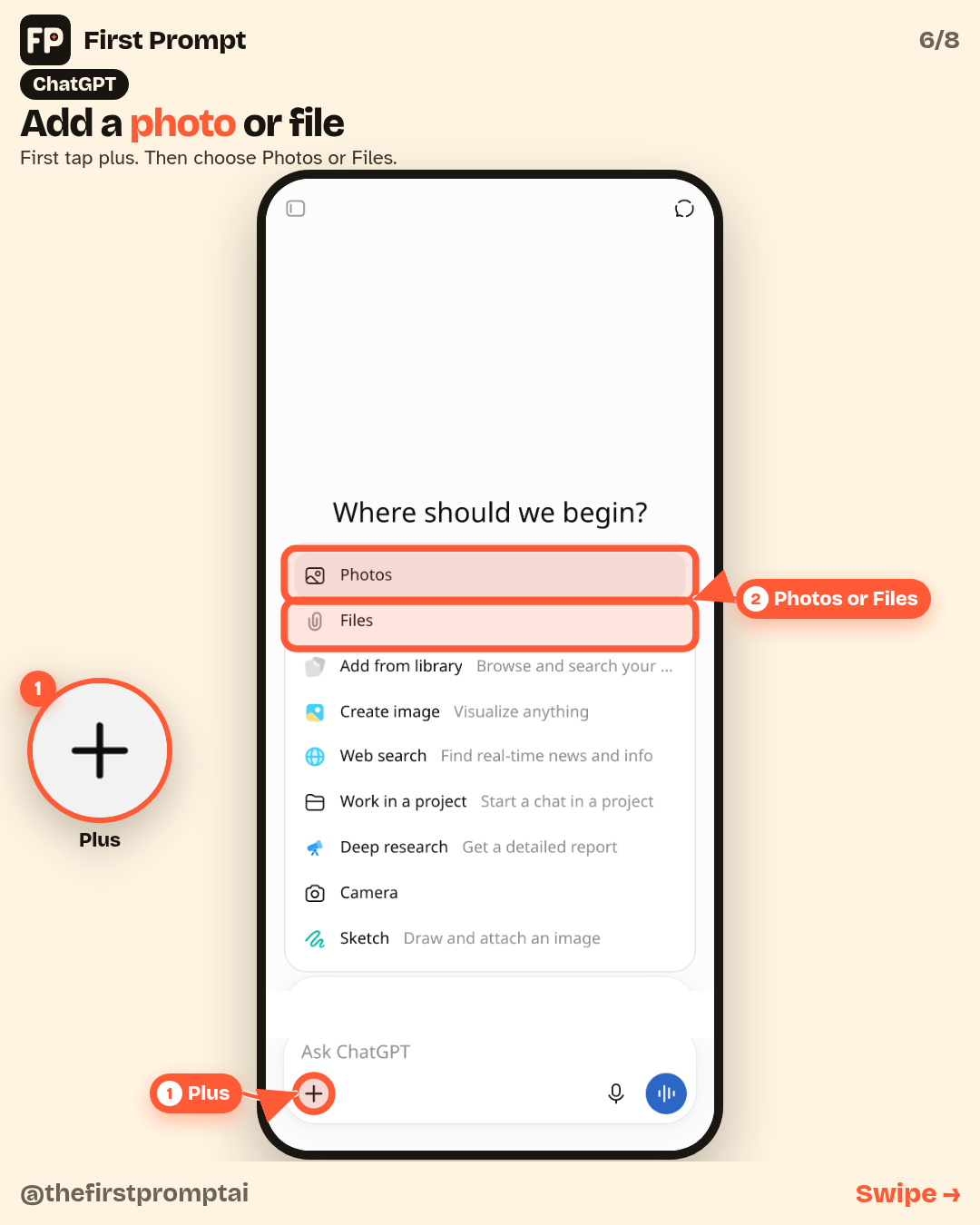
4. Add a photo or file
Tap the plus sign next to the message box. Then choose Photos or Files.
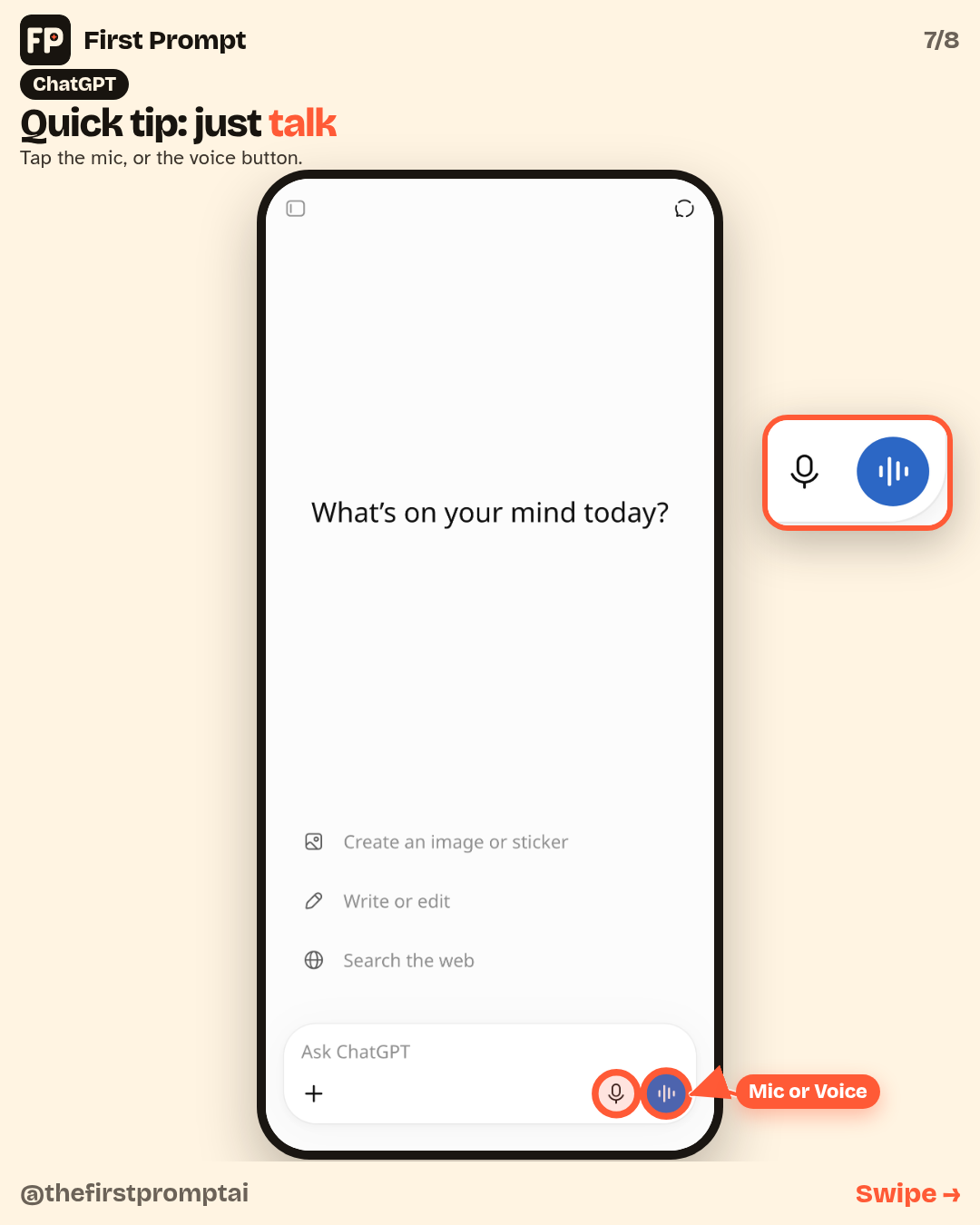
Quick tip: just talk
You can talk instead of type. Tap the mic, or the blue voice button on the right of the box.
A safety note
ChatGPT can make mistakes. Check anything important yourself. Don’t type passwords, card numbers or ID numbers into the chat.
Free plans have limits. If you hit one, wait a few hours or try another app.
Want to go further?
Not sure this is the right app? See Which AI app should you start with?. Then try New to AI? Try these 5 first, or learn What is a prompt?. You can also start with Claude basics or Gemini basics.